Drag a selected actor by its body instead of the gizmo — handy when the gizmo is far away or off-screen.
Direct Manipulation works with any of the three gizmos. What the gesture does — move, rotate or scale — depends on which gizmo is on, and its direction depends on the axis constraints.
Dragging by the body
- Select an actor and turn on a gizmo: W, E or R.
- Hover the body of the selected actor. The cursor changes: arrows in all directions for Translate, a rotation icon for Rotate, a scale icon for Scale.
- Drag.
The gesture follows the axes that are enabled now:
| Gizmo | One axis | Two axes | Three axes |
|---|---|---|---|
| Translate | along the axis | in the plane of the axes | in the screen plane |
| Rotate | around that axis | around the Z axis | around the Z axis |
| Scale | along one axis | along two axes, proportionally | uniformly |
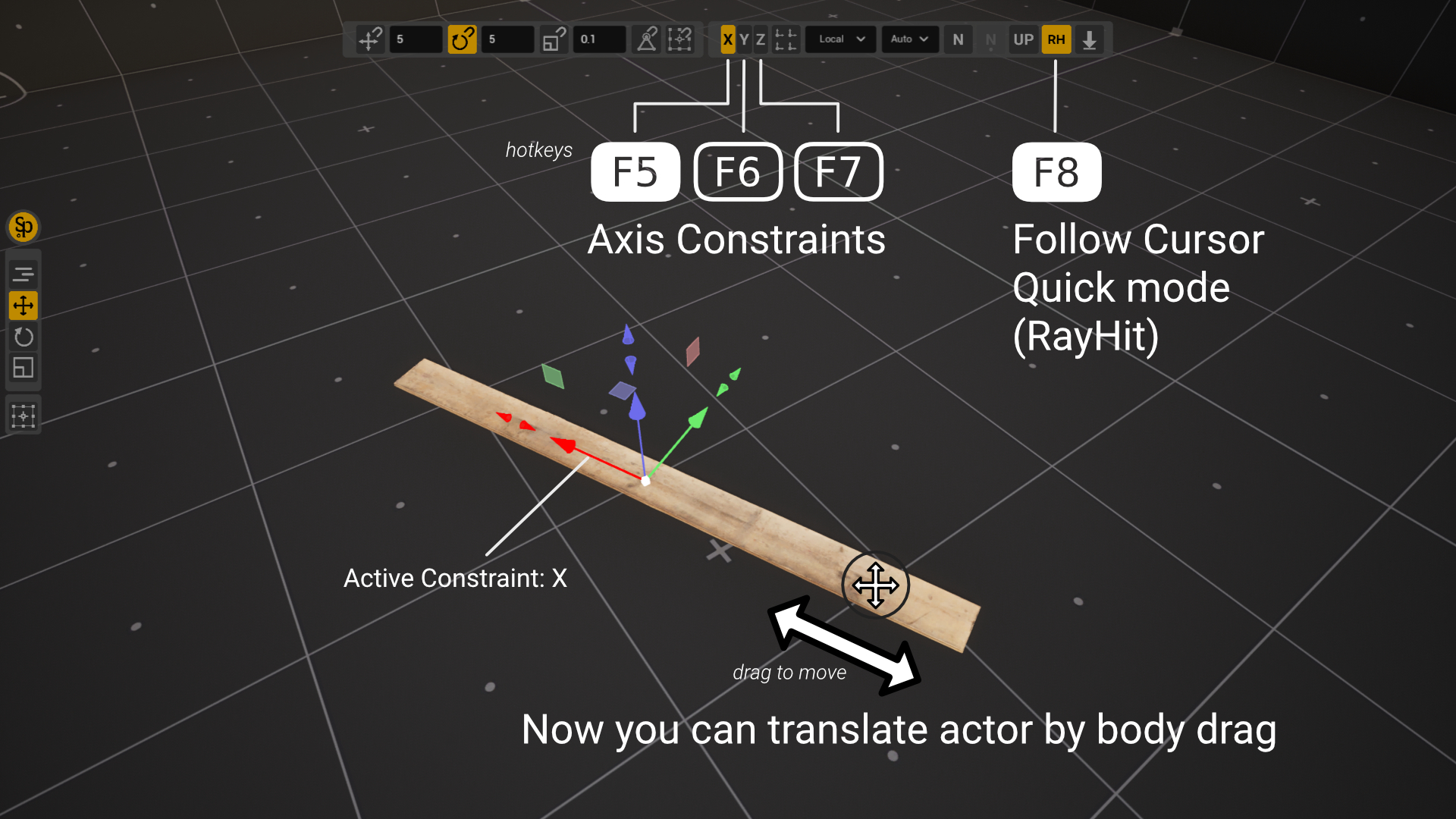
Which axis is enabled. When you drag a gizmo element, it becomes the current constraint. Drag the X arrow, and Direct Manipulation then goes along X too. Drag the XY square — and it goes in the XY plane. You can also switch the axes with F5, F6, F7.
Translate and Rotate need at least one enabled axis — otherwise the actor's body does not respond. If the cursor does not change, drag the gizmo element you need once, or turn an axis on with its key. Scale with no axes enabled scales uniformly.
A few more rules:
- With Scale along one axis, the point you grabbed follows the cursor exactly: the farther from the pivot you grab, the more precise the gesture. Hold Shift during the gesture, and the scale goes 10 times slower.
- With Translate, Shift held during the gesture turns on endless dragging with the camera, as on the gizmo.
- Grid snapping and vertex snapping work just as on the gizmo.
- The right mouse button during a gesture cancels it.
Which actors respond
Only selected actors can be dragged, and only by their visible geometry. These do not respond:
- lights and cameras;
- empty actors that have nothing but an editor icon;
- actors with a spline — a click on them goes to editing the spline points;
- Dynamic Mesh actors;
- the actor the viewport is currently locked to (piloting).
Direct Manipulation without the gizmo
You can hide the gizmo: Shift+/ or the Gizmo item in the Gizmo Visibility section of the gizmo menu (right-click the gizmo). It is one and the same switch; to bring the gizmo back, press Shift+/ again. A hidden gizmo is not drawn and does not catch clicks, while Direct Manipulation keeps working — drag the actor by its body along the enabled axes. This is handy for moving small objects that the gizmo covers completely.