The Virtual Pivot will become your best friend when you place many assets by hand, as an artist, and when you block out a level. You will reach for it all the time, so this page is worth reading — and the easiest way in is the examples in the videos below.
Why a pivot of its own
In Unreal Engine an actor rotates and scales around its own pivot — a point baked into the mesh or into the actor's root. To turn a cabinet around its corner or scale a fence from its end, you either change the asset and move the pivot baked into it, which shifts every copy already placed on the level, or settle for a less precise transform and spend far too much time on it.
SuperPlacer does it differently. While you work, the selection has a temporary pivot of its own. It behaves like a parent: move, rotate or scale the pivot, and the actors follow it, keeping their layout. The pivot can be moved to a corner, a face or the center of the bounds, to a mesh vertex or to any point. The assets and the actors stay unchanged. The Virtual Pivot lives on your current selection: when the selection changes, it goes back to its default position. You can lock it, though — without touching the pivot baked into the mesh or the actor — to keep the pivot's place from one selection to the next.
The gizmo always stands in the pivot, so the position of the gizmo is the position of the pivot. The two go together.
Where the pivot starts
When you select actors, SuperPlacer places the pivot right away by simple rules.
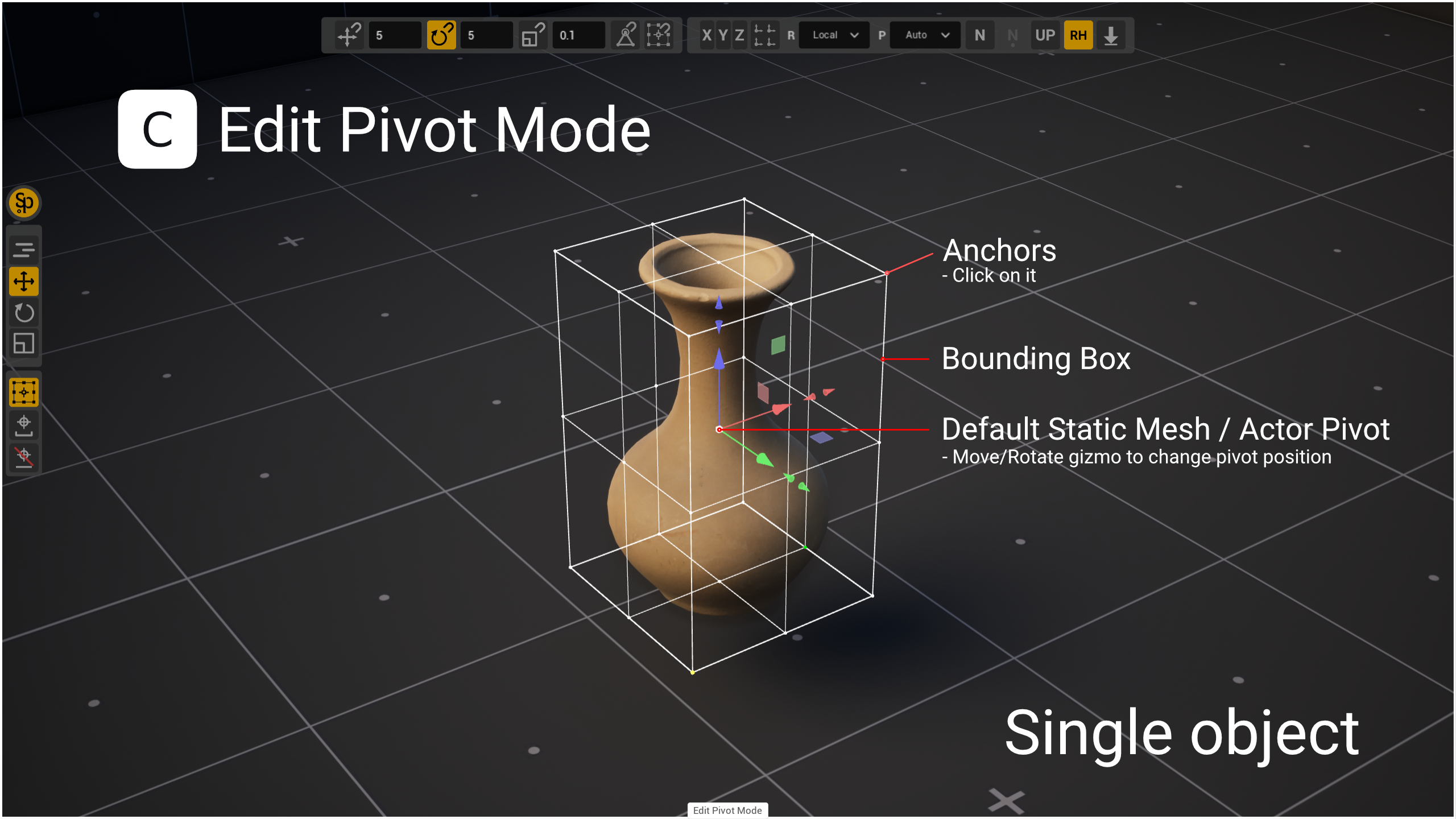
One actor. The pivot is in the actor's own pivot.
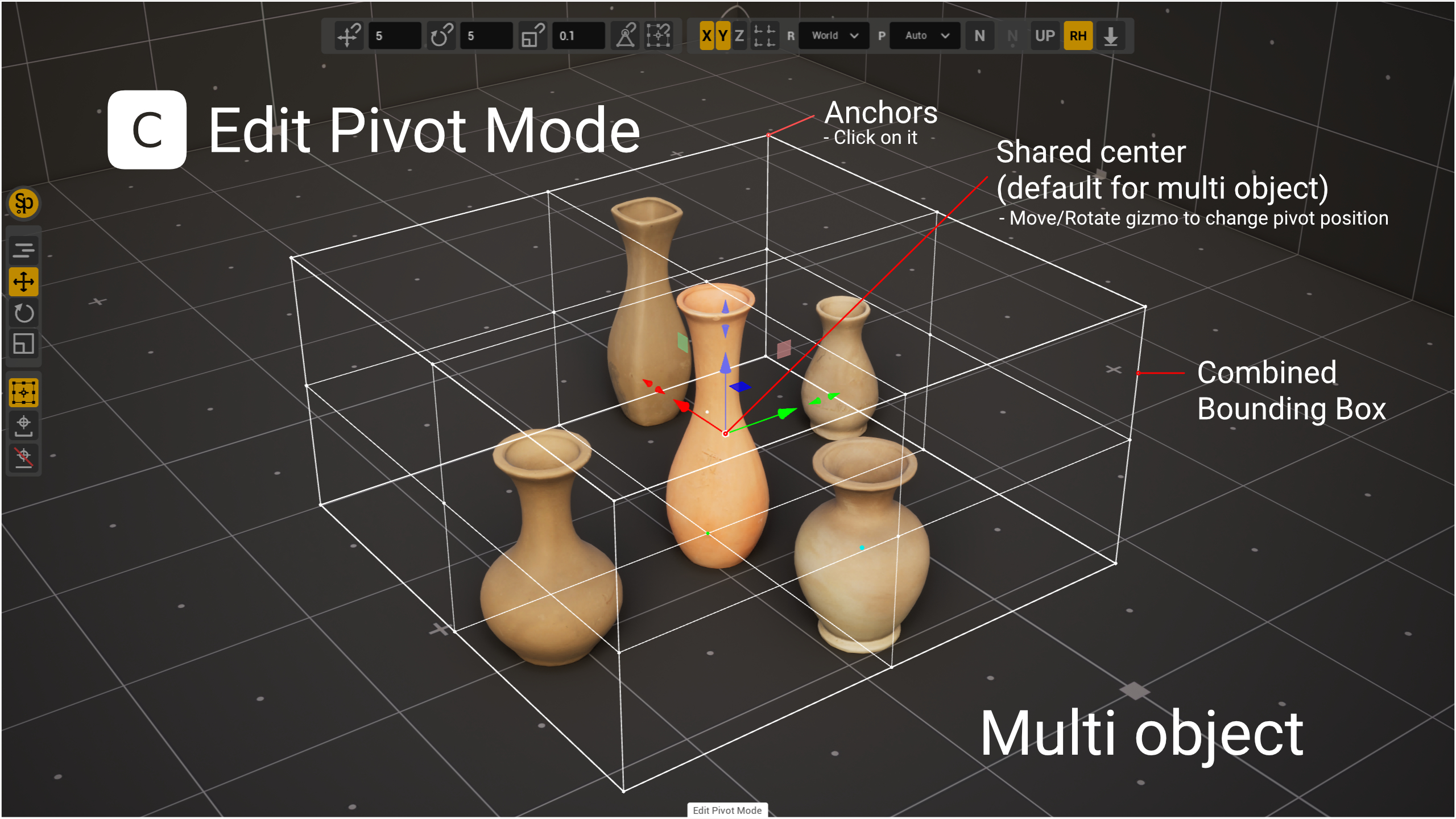
Several actors. The pivot is in the average of the actors' own pivots. This is not the center of the shared bounds: if the actors' pivots are shifted to one side, the shared point shifts too.
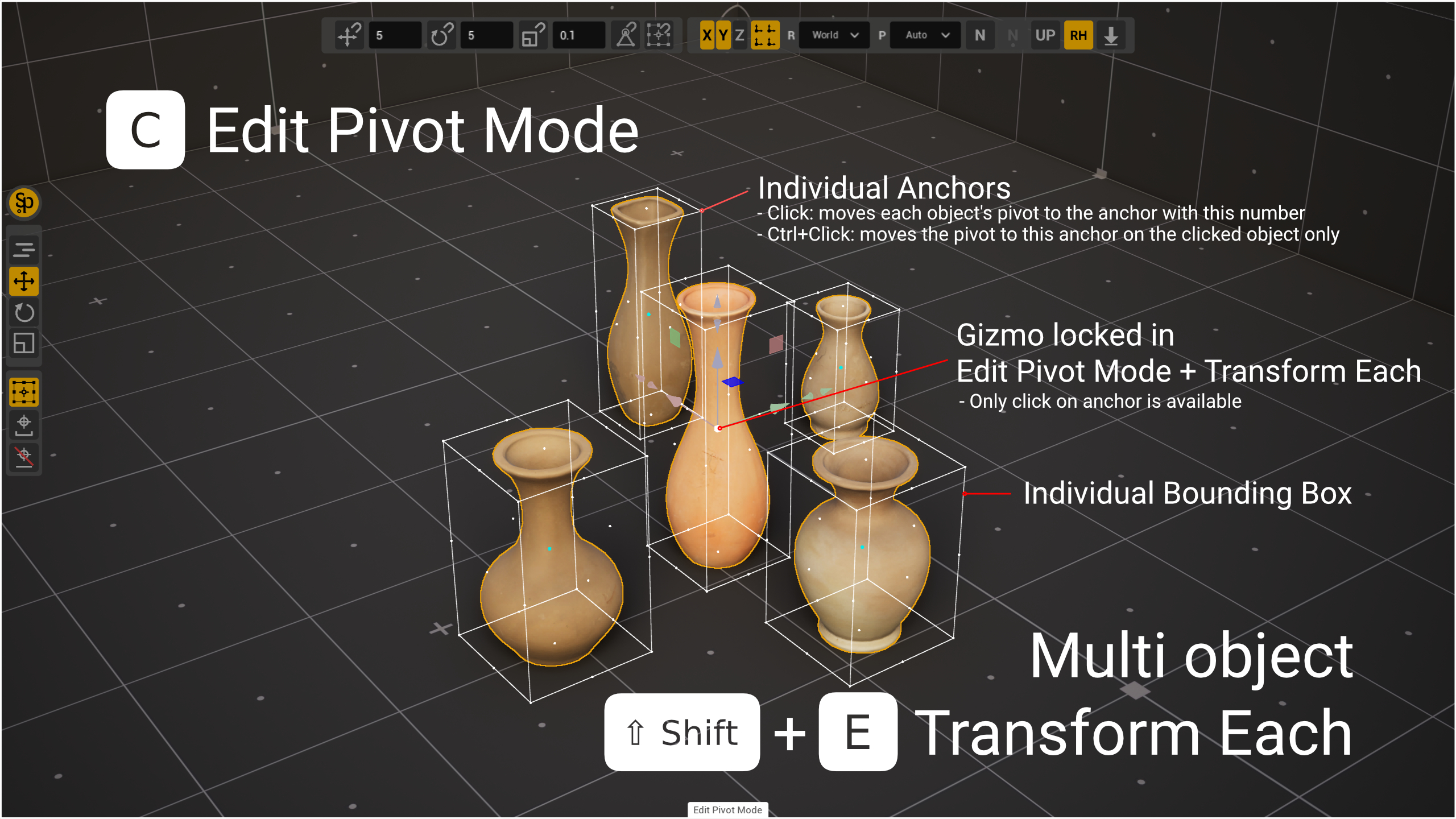
Several actors with Transform Each. Each actor works around its own pivot, and the gizmo stands in the pivot of the actor selected last.
The pivot's axes depend on the coordinate system: in World the pivot and the gizmo face the world axes, in Local — the actor's axes (with several actors — those of the actor selected last).
Scaling shows the difference best. Around its default pivot in the center, a vase sinks into the floor as it grows. With the pivot on the bottom anchor, it grows up from the floor.
A moved pivot lives until the selection changes. Select other actors, and the pivot is placed by these rules again. To make the pivot take a given place on a new selection too, lock it or save it on the actor: see Locked and saved pivot.
The pivot's position relative to the selection
In Edit Pivot (C) the pivot can be moved in several ways: click an anchor of the bounding box, or move and turn the pivot with the gizmo — with all its tools: the eyedropper, the teleport cones, Look At and the rest. In Edit Pivot the Virtual Pivot is transformed as an object of its own, and the objects it belongs to do not move until you leave Edit Pivot.
Where the pivot's position comes from is shown by the Pivot Position Source dropdown in the constraints cluster of the Stripe UI — the letter P stands in front of it:
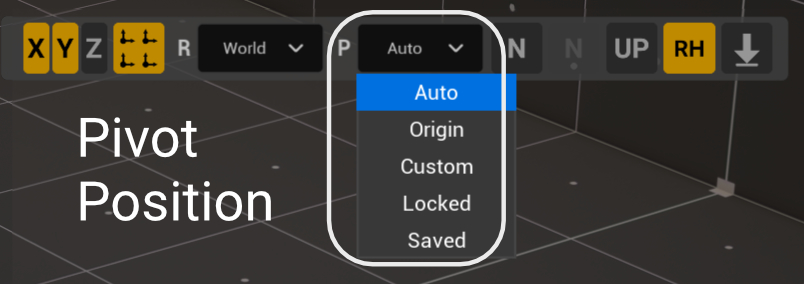
The pivot has a position and a rotation of its own, and they are set separately: the position by the P dropdown, the rotation by the coordinate system — the R dropdown next to it. For example, put the pivot on the bottom corner of a crate and keep World: the crate turns around that corner, along the world axes. Switch to Local, and the pivot stays on the same corner, but its axes turn along the crate.
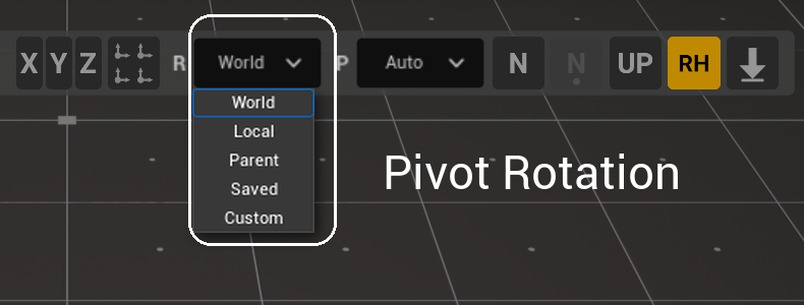
The R list also has Saved: the pivot's axes are the axes of the selected actor's saved pivot (see Locked and saved pivot). An actor without a saved pivot gets the Local axes — the list then shows Saved*.
| Value | What it means |
|---|---|
| Auto | The pivot by the rules above. Pick Auto to bring a moved pivot back: the actors do not move. |
| Origin | The pivot in the actor's own pivot. With several actors — in the pivot of the first selected one. |
| Custom | The pivot was moved by hand. This value appears by itself when you move the pivot in Edit Pivot. |
| Locked, Saved | A locked anchor and the position of a pivot saved on the actor: see Locked and saved pivot. |
Moving the pivot
A regular gesture (when you move the gizmo) moves the pivot together with the selection: the gizmo, Quick mode, Touch&Type and snapping move the pivot, and the actors follow it.
To move only the pivot and leave the actors where they are, enter Edit Pivot (C). There the pivot goes onto bounds anchors, onto mesh vertices or to any point.
Edit Pivot: the pivot alone
Edit Pivot is for when you need to work around a point other than the one SuperPlacer picked by itself. Turn a door around its hinge, scale a shelf from the wall, put a crate on the floor by its bottom face, fit a vertex of one object to a vertex of another — for all of these you first put the pivot where it is needed and then work as usual. In Edit Pivot only the pivot moves, and the actors stay in place; after you leave, every gesture goes around the new pivot.
You can pick one of the 27 anchors of the bounding box or the actor's Origin (see Bounds anchors). You can also move the pivot with the gizmo, or take a position or a rotation with the eyedropper (I) — see Moving and rotating by hand.
Entering and leaving
- Select one or more actors. Without a selection Edit Pivot does not turn on.
- Press C or the Edit Pivot button in the Column UI at the left edge of the viewport.
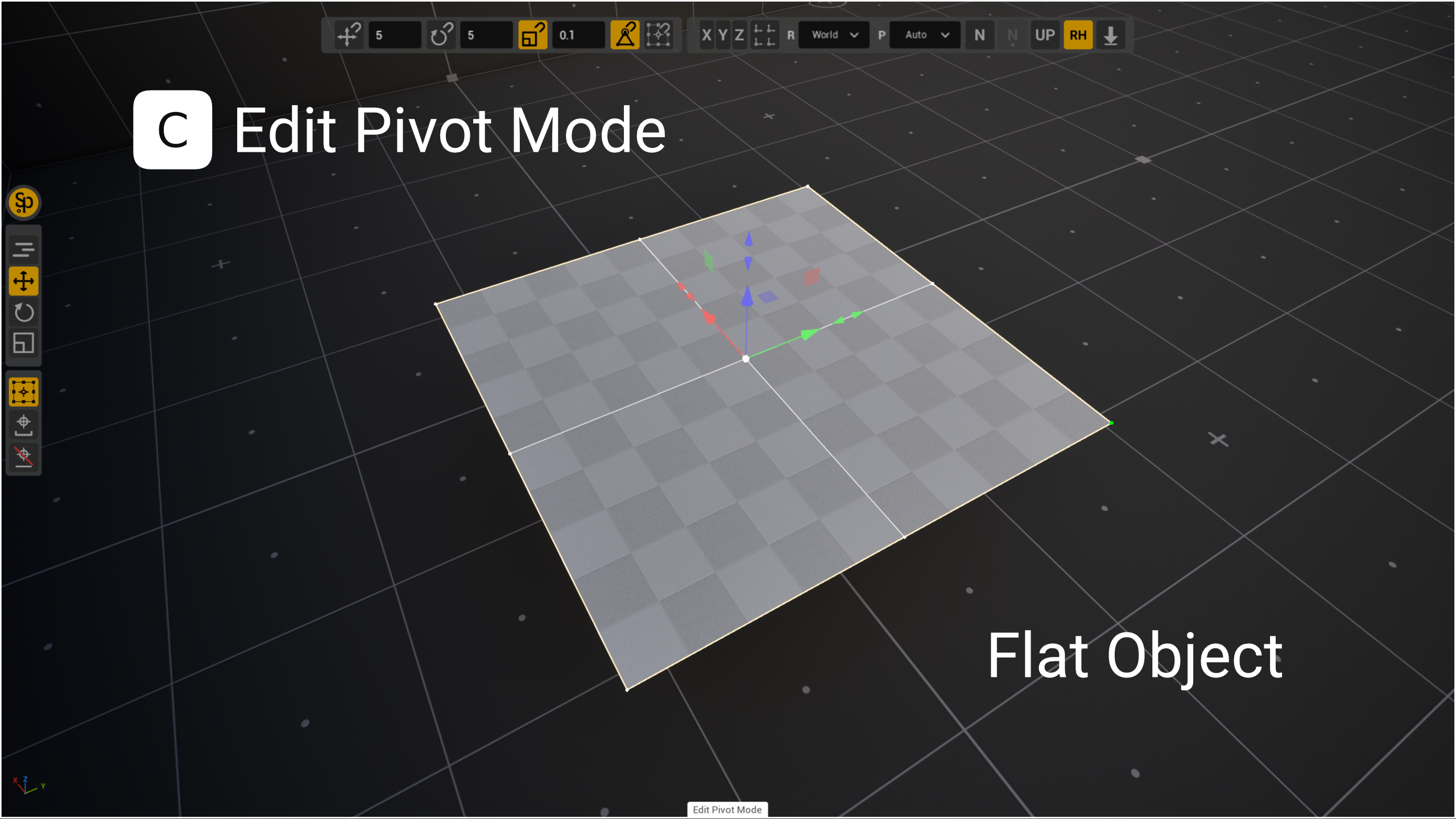
- A box with anchors appears around the selection, a thin white frame runs along the edges of the viewport, and an Edit Pivot Mode label sits at the bottom center: they show that the pivot is being edited, not the objects. The frame and the label help when the object is flat or just a point and its bounding box cannot be seen. Move the pivot — the actors stay in place.
- Press C again or Esc to leave. The pivot stays where you put it.
Then rotate, scale and move the selection as usual — now around the new pivot. It lives until the selection changes (see Where the pivot starts).
Every pivot move — a click on an anchor, a gizmo drag, the eyedropper — is its own undo step: Ctrl+Z puts the pivot back where it was, and the actors don't move.
Bounds anchors
The box wraps what you are working with now. Usually that is the selected actors as a whole, with all their components. When you edit spline points or mesh elements, the box is built only around the selected points or elements.
Box orientation
- One object — the box follows its own axes, even if the object is rotated.
- Several objects — one shared box along the world axes.
You can switch the orientation: Shift+C inside Edit Pivot, or the Local / World items in the Pivot Box section of the gizmo's right-click menu. World builds the box along the world axes for one object too, Local — along the axes of one of the objects for several: for actors, the one selected last.
This is a setting of the box alone. The gizmo axes and the coordinate system do not change with it, and changing the coordinate system does not turn the box. The box shows where the object's corners and face centers are, and the gizmo shows the axes to move along, so a box along the actor's axes with the gizmo in World is a normal combination. Each time you enter Edit Pivot, the box orientation is picked again by the number of objects.
Anchors
The box has 27 anchors: 8 corners, 12 edge midpoints, 6 face centers and the center. A separate Origin anchor is the object's own origin:
- for actors — the actor's pivot, with several actors — that of the first selected one;
- for spline points — the last selected point, for a spline component — its start;
- for mesh elements in Modeling Mode — the start of the mesh.
Click an anchor, and the pivot moves there.
A click on an anchor moves only the position of the pivot. The pivot's axes stay as the coordinate system sets them.
Flat objects
If the box is flat — thinner than 0.01 cm along one of its axes — only 9 anchors are shown, in the object's plane: the corners, the side midpoints and the center. A rotated plane is flat only in its own axes: switch the box to World, and it turns into a volume with 27 anchors again.
Moving and rotating by hand
Besides clicking an anchor, you can put the pivot anywhere. All the usual tools work in Edit Pivot, but they move only the pivot:
- The Translate gizmo (W) — drag the pivot; the Rotate gizmo (E) — turn it.
- Quick (Q) — click the yellow dot on the pivot, and the pivot follows the cursor over surfaces, the selected object itself included. Another click finishes the move, the right mouse button cancels it. While the pivot moves, the box and the anchors turn grey.
- Touch&Type — after a gesture, type a number or double-click a gizmo element: the pivot gets the value you enter.
- The eyedropper (I) — take a position (with the Translate gizmo) or a rotation (with the Rotate gizmo) from another actor.
- The teleport cones and Look At of the gizmo — they also move and turn only the pivot. The selected object is a valid target for them, which makes it easy to put the pivot on its surface.
- End — drops only the pivot to the surface below it; the selection stays in place.
- Vertex and bounds snapping — the pivot sticks to vertices, the vertices of the selected object itself included, and to the bounds anchors of other objects.
Moving the pivot by hand switches the pivot position source to Custom.
Resetting the pivot rotation in Edit Pivot
Shift+R in Edit Pivot turns only the pivot, and the selection stays in place:
- with one actor selected, the first press aligns the pivot to the actor's axes, the next one to the world axes, the one after that to the actor's axes again;
- with several actors selected, the pivot aligns to the world axes.
Pivot rotation and the coordinate system
If you turned the pivot in Edit Pivot, the coordinate system switches to Custom by itself — right after the turn, or at the latest when you leave Edit Pivot. Otherwise World or Local would give the pivot its old axes back, and the rotation would be lost. On the next selection change, the system you had before comes back.
To align a vertex of one object with a vertex of another, turn on vertex snapping, put the pivot on the vertex of your object in Edit Pivot, leave Edit Pivot and drag the object by the gizmo to the neighbour's vertex.
Edit Pivot and Transform Each
If Transform Each is on (Shift+E) and two or more objects are selected, Edit Pivot draws a box on each object. There is no shared box in this mode.
- A click on an anchor sets the anchor with the same number on all objects. For example, the bottom center on each object.
- A click with Ctrl changes the anchor only on the object you clicked. The next plain click lines all objects up again.
- Origin of any object gives it its own pivot back.
The gizmo is grey in this mode: here the pivot is moved only by clicking anchors. After you leave Edit Pivot, each object rotates and scales around its own anchor. The teleport cones, dropping to the floor (End) and Look At also work from each object's anchor: for example, books hanging at different heights can be put on a shelf each by its bottom face.
Snapping by a prepared pivot
In Edit Pivot the pivot is transformed like any other object, so what you use on objects works on it too, Touch&Type and vertex and bounds snapping included. While you move the pivot, it sticks to the vertices and the bounds anchors of other objects, just as an object would.
That is what makes the pivot a tool for assembly. First put the pivot on the point the object should be joined by — a corner of a beam, the end of a pipe. Then leave Edit Pivot and drag the object: now the object itself is carried by that point and snaps by it to a vertex or a bounds anchor of a neighbour. In the video a frame is assembled from steel channels this way: the pivot of a channel goes from its center to a corner, the copies are made with Touch&Type, and each channel is snapped by its corner to the bounds of the channels already in place.
Spline points and components
Edit Pivot also works while you edit spline points:
- Points are selected — the box is built around the selected points. With one point, the box collapses into a point with a single anchor on it. With several points, the box follows the world axes; Shift+C switches it to the axes of the last selected point (see Box orientation).
- A spline component is selected (the component level) — the box is built around the component itself, not the whole actor: the actor's other components do not get into the box. Origin is the start of the component.
- A click on a spline point in Edit Pivot puts the pivot exactly in that point — both at the point level and at the component level.
Inside Edit Pivot, Esc first leaves Edit Pivot, and the selection of points or of the component stays. A click on empty space in Edit Pivot does not change the selection.
Mesh elements in Modeling Mode
Edit Pivot also works inside the Modeling Mode tools where you select vertices, edges and faces of a mesh (PolyGroup Edit, Triangle Edit). Select the elements and press C: the box is built around the selected elements.
The box is oriented by the same rule as for actors:
- One element — along its own axes (the axes of the tool's gizmo in Local): a face gives a flat box in its own plane.
- Several elements — along the world axes.
Shift+C or the Pivot Box section of the gizmo's right-click menu switch the box between Local and World. Local for several elements is the tightest box around them: for example, for the faces of a slanted wall it lies along the wall. The coordinate system and the gizmo axes do not change with this switch.
In the tools that move the whole mesh (Transform, for example), the box is built around the mesh itself, and with several meshes — around all of them at once. Origin is the start of the mesh.
If one vertex is selected, it has a single anchor: click it to put the pivot exactly in the vertex.
Locked and saved pivot
A moved pivot lives until the selection changes: select another actor, and the pivot goes back to that actor's own pivot (see Where the pivot starts). This gets in the way when you set many objects up the same way — for example, put every crate on the floor by its bottom face. For such cases the Pivot Position Source list has two more values: Locked and Saved.
Locking an anchor (Locked)
A locked anchor is remembered by its number. On every new selection the pivot goes straight to the anchor with that number — on the box of the new selection, exactly where a click on that anchor in Edit Pivot would put it. The box of the new selection has the default orientation: one object — along its own axes, several — along the world axes. The Shift+C switch works only inside Edit Pivot and does not carry over to new selections.
How to lock
- Select an actor and press C to enter Edit Pivot.
- Double-click the anchor you need.
You can do it slower, too: click the anchor, then click the same, already selected anchor again. This works with the Translate, Rotate and Scale gizmos. In Quick mode the selected anchor carries the yellow dot, and a second click starts Quick, so lock with a double-click there.
- The anchor turns orange with a ring, and the Pivot Position Source list shows Locked and the anchor's number, for example Locked 7. Number 27 is Origin, the actor's own pivot.
Leave Edit Pivot and select other actors: each time the pivot is on the locked anchor.
You can also lock an anchor from the list: pick Locked in Pivot Position Source. The anchor the pivot stands on now gets locked; if there is none — the last locked number or Origin.
How to unlock
- In Edit Pivot, pick another anchor with a plain click: the pivot moves there, and the lock is released.
- Or pick another value in Pivot Position Source, for example Auto.
- If you drag the pivot in Edit Pivot with the Translate gizmo, the source becomes Custom, and the lock is released too.
The number of the last locked anchor is remembered: picking Locked again takes it, and so does Saved as a fallback (see below).
- If the new selection has no such anchor (for example, a flat object that shows only 9 anchors), the pivot is placed by the usual rules, and the lock stays for the next selections. - The lock is not kept between editor sessions. - With Transform Each, a double-click locks the anchor on all selected objects at once (see Edit Pivot and Transform Each).
Saving the pivot on an actor (Saved)
A saved pivot is stored on the actor itself: the position and the rotation of the pivot relative to the actor. It travels with the actor, survives an editor restart and is copied together with the actor. The position comes back through Saved in the P list, the rotation through Saved in the R list.
How to save
- Select an actor (or several) and enter Edit Pivot (C).
- Put the pivot where you need it and turn it, if needed.
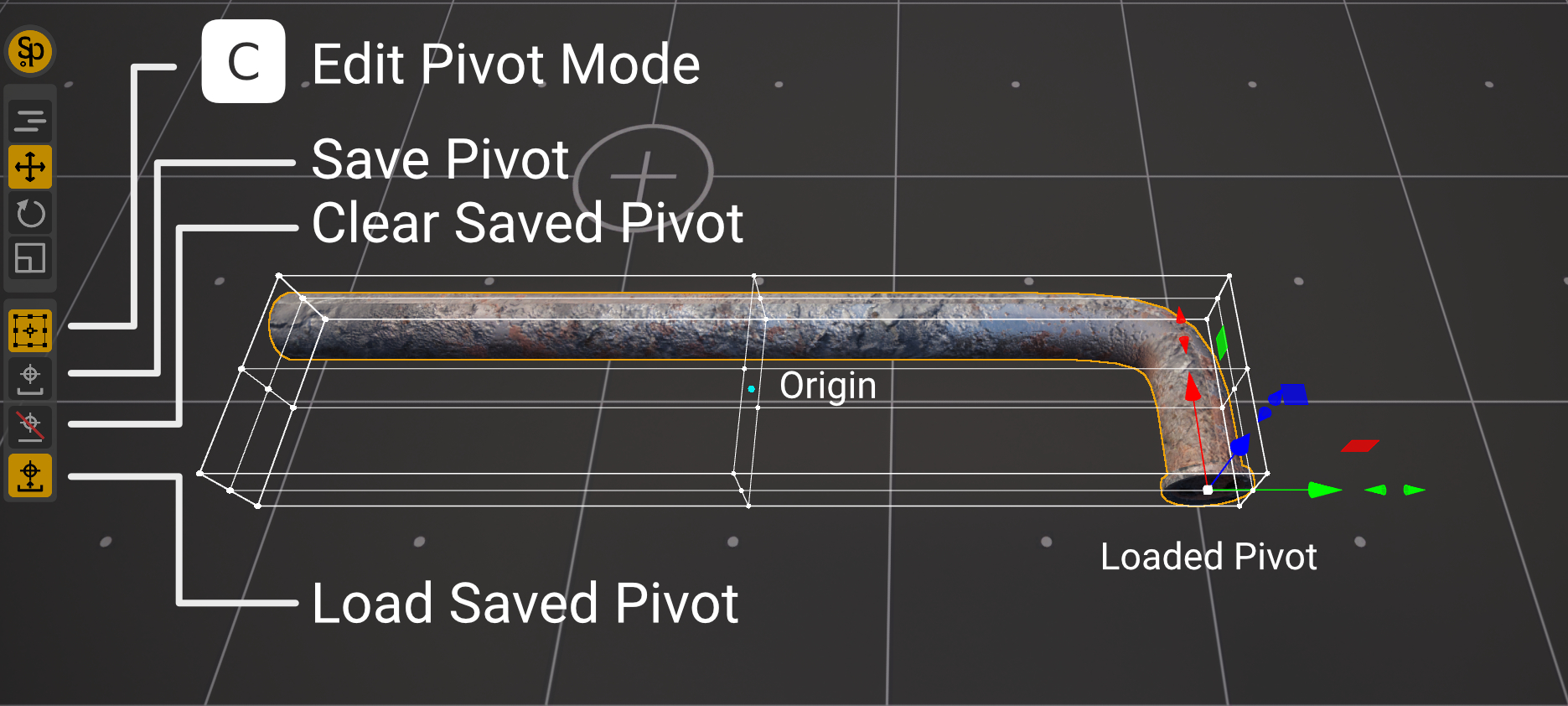
- Press the Save Pivot button under the Edit Pivot button. The Save Pivot and Clear Saved Pivot buttons are shown only in Edit Pivot, when actors are selected.
The pivot is written into every selected actor — into each in its own coordinates. P and R both become Saved, so nothing moves. Saving is undone with one Ctrl+Z.
Save Pivot works in the mesh editors of Modeling Mode too (PolyGroup Edit, Triangle Edit and the like): select elements, press C, put the pivot where you need it — on an anchor of the selected elements, on a vertex — and press Save Pivot. The pivot is written onto the actor whose mesh you edit. After you leave the tool, the actor already has it: P and R are Saved, and the pivot stands on the saved place.
While the pivot is being moved in Quick mode, it cannot be saved: finish the move first.
What happens on a new selection
While Saved is picked in Pivot Position Source, on every new selection SuperPlacer looks at the selected actor (the saved pivot is read only when one actor is selected; with several, it goes straight to step 2):
- The actor has a saved pivot — the pivot goes to its position. If the actor has been turned or moved since, the pivot moves with it.
- There is no saved pivot, but an anchor was locked before — the pivot goes to that anchor.
- Otherwise — the usual Auto rules.
The axes of the pivot come from the R list as always: with Saved there they are the saved pivot's axes, with World — the world axes, and so on.
Load Saved Pivot
The Load Saved Pivot button under Edit Pivot switches both lists at once: pressed, P and R become Saved and the pivot goes onto the saved pivot of the selection; pressed again, they go back to Auto and Local. The button is lit while both lists are Saved. Unlike Save Pivot and Clear Saved Pivot, it shows outside Edit Pivot too: you can load the saved pivot without entering it.
Saved pivots as sockets
With bounds snapping on, the saved pivot of the object under the cursor is a snap point too: a green dot with three short axes appears among its bounds anchors. Drag your object to it, and its pivot snaps to that position.
Hold Ctrl while dragging, and the saved pivot becomes a socket. Only saved pivots snap then, and your object takes their rotation as well: the axes of its pivot turn onto the axes of the saved pivot, X to X, Y to Y, Z to Z. Leave the socket during the same drag, and the object turns back. Two objects with saved pivots join like a plug and a socket: save the plug's pivot where it should touch, save the socket's pivot where it should be received, then drag one into the other with Ctrl held.
- The rotation is taken in a free drag — by the center of the Translate gizmo or by the object itself (Direct Manipulation) — and in a drag along an axis or a plane only when that axis or plane passes through the socket.
- With Transform Each and several objects the socket gives the position only: each object turns about its own anchor there.
- In Quick mode a socket gives the position only.
- In Edit Pivot the pivot alone takes the socket's position and rotation; the coordinate system switches to Custom.
- Ctrl+Shift while dragging turns snapping off completely.
- The Saved pivots checkbox in the Snapping settings switches the sockets off; it works only with bounds snapping on.
- Saved pivots of instanced meshes and of the object you are moving are not offered.
The saved pivot lives in an ordinary actor tag — in the Tags list of the Details panel it starts with SP.Pivot:. The
level opens without SuperPlacer as well: the tag stays a plain string and breaks nothing. Do not edit this tag by hand.
Clearing a saved pivot
- Select the actors and enter Edit Pivot (C).
- Press Clear Saved Pivot.
The saved pivot is removed from all selected actors, and the pivot goes back to the actor's origin with its own axes: P switches to Origin, R to Local. Clearing is undone with one Ctrl+Z — the saved pivot, P and R come back together.
Saved works only for regular actors: the pivot is kept in the actor's tag.
The Virtual Pivot window
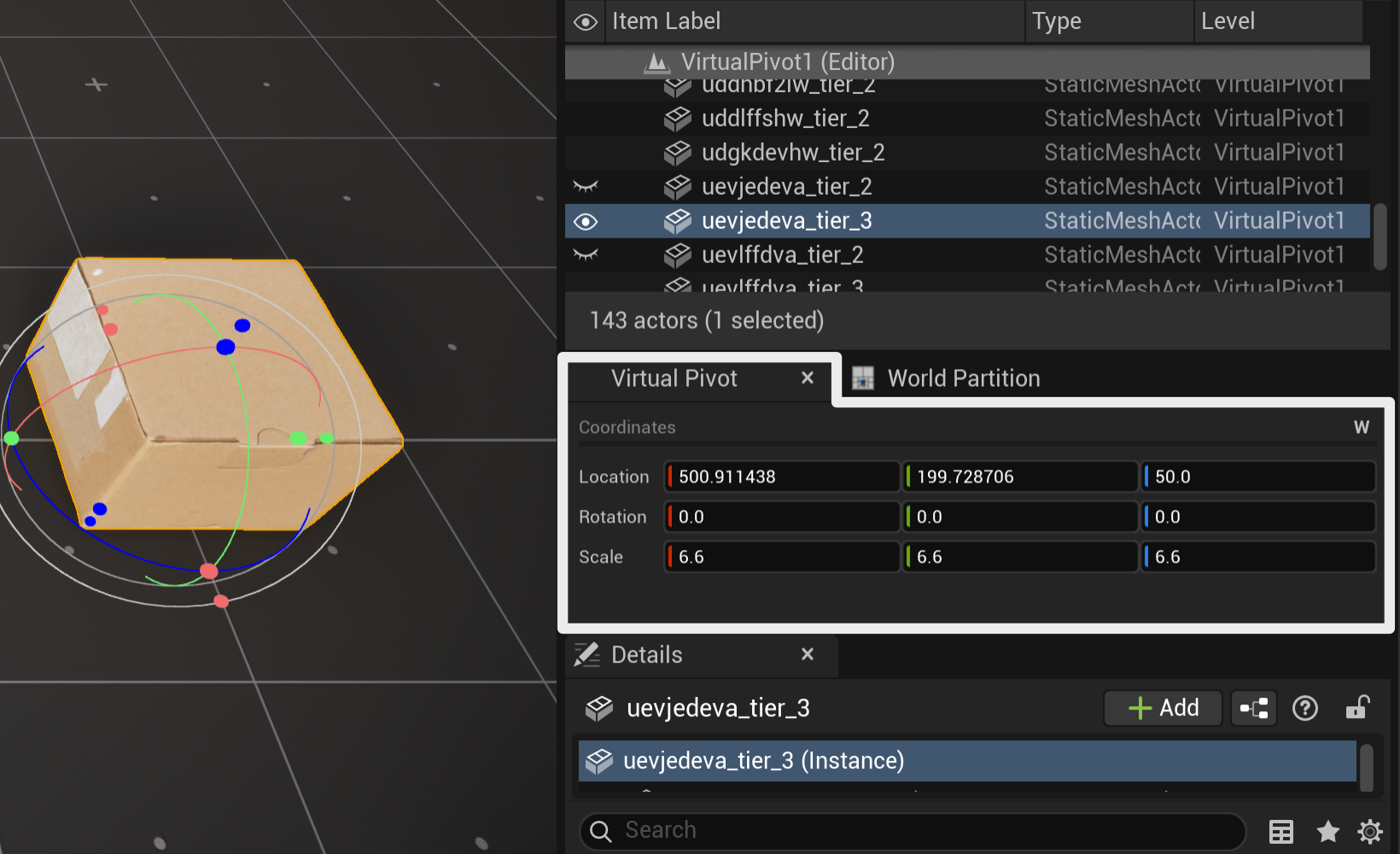
The exact numbers of the pivot are shown in the Virtual Pivot window. Open the editor's main menu SuperPlacer → Virtual Pivot. The window can be docked next to the Details panel.
The window has three rows — Location, Rotation and Scale — and the letter of the current coordinate system in the Coordinates header. You can change the values right in the window: by typing or by dragging with the mouse.
- Outside Edit Pivot Mode (C), the selection follows the pivot like a parent.
- In Edit Pivot Mode (C), only the pivot changes.
How it differs from Transform in Details
The Transform section of the Details panel and the Virtual Pivot window look alike, but they show different things:
- Whose numbers. Details shows the transform of each actor around the pivot baked into it; for an attached actor — relative to its parent. The Virtual Pivot window shows the one pivot of the whole selection: Location is where the pivot stands in world coordinates, Rotation is the pivot's own rotation — the axes the coordinate system gives it.
- Several actors. Where the actors' values differ, Details shows Multiple Values, and a value you type goes to every actor: all of them land on the same spot. The window has one value for the whole selection: type a new Location, and the selection moves as one piece, keeping its layout.
- Rotation and scale. In Details each actor turns and scales around its own pivot. In the window the whole selection turns and scales around the Virtual Pivot — for example, around the bottom corner you put it on.
So the window is handy for exact placement by the point that matters. Put the pivot on the bottom face of an object, type
0 in the Location Z field, and the object stands exactly at zero height, whatever its own pivot is.
Tilting the pivot to the surface normal
The Surface Normal Tilt button in the constraints cluster and the N key turn on the pivot tilt to the surface normal (N-Pivot). While it is on, the pivot — and the selection with it — tilts to the surface it lands on:
- during a Quick gesture — to the surface under the cursor;
- when dropping onto a surface (End) and when clicking a teleport cone of the Translate gizmo — to the surface the ray hit.
This is handy for placing objects on slopes and walls.
In a Quick gesture it's the object itself that tilts — in its own axes, in any coordinate system: World and Local give the same result. The object's Z axis turns to the normal the shortest way, so on the surface the object already lies on, it doesn't turn: a picture hanging on a wall doesn't spin when you carry it along the same wall again. With several actors the selection tilts by the axes of the actor selected last, and with Transform Each each actor tilts to the surface under it, starting from its own rotation. The mouse wheel turns the selection around the normal. The coordinate system doesn't change: after the gesture the gizmo is back in its axes.
A right click on the Surface Normal Tilt button opens its N-Pivot popup; the same section is in the popup of the whole constraints cluster. The Respect Original Virtual Pivot Rotation checkbox (off by default) changes the rule for Quick: the object lies on the new surface the way it lay on the old one — it turns by as much as the surface under the cursor is turned from the one it stood on when the gesture began.
While Directional Drop is on, the normal tilt is not available: the button is grey and N does nothing.
Turning by 90° and resetting
Outside Edit Pivot these keys change the pivot, and the selection follows it like a parent. With one actor selected, the pivot coincides with the actor, so the actor itself changes. In Edit Pivot they change only the pivot — see below.
| Keys | Action |
|---|---|
| [ / ] | Turn the pivot by −90° / +90° around the X axis |
| Shift+[ / Shift+] | Turn the pivot by −90° / +90° around the Y axis |
| Shift+R | Reset Pivot Rotation — reset the pivot rotation |
| Ctrl+Shift+R | Reset Pivot Scale — reset the pivot scale to 1 |
Turning by 90°. In the World coordinate system the pivot turns around a world axis, in the other systems — around its own.
In Edit Pivot the brackets turn only the pivot, even with one actor selected, and the coordinate system switches to Custom right away, so the gizmo shows the turn at once (see Pivot rotation and the coordinate system). From then on each press turns the pivot around its own axes: Shift+] after ] turns it around the pivot's Y axis that has already been turned.
Reset Pivot Rotation straightens the rotation — in any coordinate system.
- One actor: if it is attached to a parent, its rotation becomes the parent's rotation; an actor without a parent aligns to the world axes. A hint Shift+R again = orient to world appears at the cursor for 2 seconds: pressing again within that time aligns the actor to the world axes. After the reset the pivot faces the way the coordinate system says.
- Several actors: only the pivot rotation is reset — to the world orientation; the selection turns with it as one piece, and the actors' rotations relative to each other do not change. This is how an unlucky turn of the whole group is undone. If the pivot already faces the world axes (as it usually does in World), nothing happens.
Reset Pivot Scale brings the pivot scale back to 1.
- One actor: the pivot scale equals the actor's scale, so the actor goes back to the scale 1, 1, 1.
- Several actors: the selection scales back together with the pivot if the pivot scale is not 1.
In Edit Pivot Shift+R also turns only the pivot, and Ctrl+Shift+R does nothing — see Resetting the pivot rotation in Edit Pivot.
With Transform Each on and several actors, both reset keys reset each actor in place: Shift+R aligns each child actor to its parent's rotation and the others to the world axes (pressing again within 2 seconds — all to the world axes), and Ctrl+Shift+R gives each actor the scale 1, 1, 1.
Every press that changes something is undone with one Ctrl+Z.
All these shortcuts can be reassigned: the main menu SuperPlacer → Hotkeys, the Pivot & Pattern section.