Lay several actors out in a grid that respects their sizes — for example right after dropping assets from the Content Browser. The box handles change the rows and the gaps, OK keeps the layout, Cancel puts everything back.
When you need it
Drag several assets from the Content Browser at once, and they all land on the same spot, one inside another. Distribute puts such actors side by side: each one takes up as much room as its size needs, nothing overlaps, and the whole layout fits in a box close to a square. You can then move, rotate and scale the layout as one piece, change the row width and the gaps, and in the end keep it or cancel it.
Distribute works in Transform mode on the selected actors — two or more. Actors that already stand in the level work too.
Getting started
- The button after a drop. Drag several assets from the Content Browser at once. A Distribute button appears next to the drop point for 3 seconds — click it. The button goes away by itself or as soon as you do anything else: click elsewhere, press a key, turn the mouse wheel, move the camera, change the selection. It appears only when SuperPlacer is in Transform mode and awake.
- The actor menu. Right-click one of the selected actors (not the gizmo). The engine's menu opens with a SuperPlacer section on top and its Distribute item. The section is there when SuperPlacer is in Transform mode, awake, and two or more actors are selected.
- The gizmo menu. Select the actors, right-click the gizmo and choose Distribute in the Layout section (see the right-click menu). The section is there when two or more actors are selected.
- Your own hotkey. The Distribute Selection command has no default shortcut — assign one in the SuperPlacer Hotkeys tab. Inside an open layout the same command works as OK.
The Distribute Mode banner appears at the bottom of the viewport, and the Distribute window at the top right.
If you don't need the button after a drop, clear Offer Distribute After Drop in the Distribute group of the SuperPlacer Settings window.
How the actors are laid out
- The actors go into rows in selection order; right after a drop, the dropped actors are the selection. A row runs along the pivot's X axis. When the next actor doesn't fit in the width, a new row starts, further along the Y axis.
- The room an actor takes is its bounds in the layout plane. Visible parts without collision count too, so decorations don't collapse to a point.
- In a row, the actors are centred on the row's depth. The layout doesn't change the actors' height.
- On entry, the row width is chosen so that the box comes out as close to a square as possible. The default gap between actors and between rows is 10 cm.
- The layout plane is the pivot's plane (its X and Y axes). On entry the pivot goes to the centre of the layout, onto its floor — the level of the lowest actor. That's why scaling and rotating the composition never takes actors below the floor.
Box handles
The layout box is a teal outline drawn on the layout floor. In the middle of each side there is a small square handle — four in all. A handle that lands on a gizmo arrow slides along its side until it is clear of the arrow, so a click takes the handle, not the gizmo.
- Drag a handle — its side moves, the opposite side stays. The handles at the ends of the rows change the row width, the handles in front of the first row and behind the last one change the depth of the layout. The actors flow from row to row; their size doesn't change.
- Hold Ctrl and drag a handle — the rows stay as they are, and the gap along the handle's axis stretches instead: the handles at the ends of the rows spread the actors within each row, the handles in front of the first row and behind the last one spread the rows apart. Hold Ctrl down before you press the handle.
- Right-click during a drag — the drag is cancelled, and the layout goes back to what it was before it.
An exact value. Press a handle and type a number: the Touch&Type window opens with the value this handle changes. You don't have to move the handle — a click on it is enough.
| Handle | Touch&Type field | What it changes |
|---|---|---|
| at the end of a row | Width | the box width — the rows re-flow |
| in front of the first row or behind the last one | Depth | the box depth — the rows re-flow |
| at the end of a row, pressed with Ctrl | Gap X | the gap between the actors in a row — the rows stay |
| in front of the first row or behind the last one, pressed with Ctrl | Gap Y | the gap between the rows — the rows stay |
The window is titled Distribute: Box, or Distribute: Gap with Ctrl. The layout changes as you type. As with a drag, the side opposite the handle stays in place; when you type a gap, the centre of the box stays in place. Enter keeps the layout, Esc puts it back the way it was before you typed. If you start typing while still holding the handle, the drag first goes back to the moment you pressed it, and the value counts from there.
While you drag a handle, the gizmo and the Quick dot are hidden. The handles themselves hide while Quick is working, while you drag the gizmo and while you are in Edit Pivot.
The Distribute window
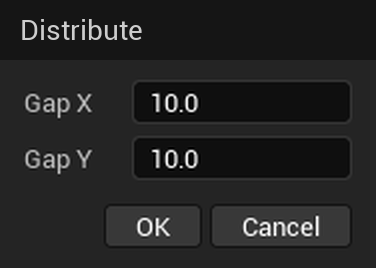
| Field or button | What it does |
|---|---|
| Gap X | The distance between neighbouring actors in a row, in centimetres. |
| Gap Y | The distance between the rows, in centimetres. |
| OK | Keep the layout and close Distribute. Same as Enter. |
| Cancel | Put the actors back where they stood before Distribute and close it. Same as Esc or the window's close button. |
A new gap spreads the actors apart or brings them closer in the same rows; the centre of the layout stays in place. You can drag the value with the mouse — the layout follows live. Ctrl with a box handle sets the same gaps.
The window doesn't take the keyboard when it opens: Enter, Esc and the other keys work in the viewport as usual. While you type a number into a field, the keys go to the field.
The whole composition
Everything that works in Transform mode works inside Distribute too. The layout plane is the pivot, so it follows the pivot:
- The Translate, Rotate and Scale gizmos and Quick move, rotate and scale the whole layout. Scaling the composition stretches the gaps too — the layout grows as one piece.
- With Transform Each, every actor is scaled and rotated in its own place. After the gesture the layout spreads the actors by their new sizes on its own: the same rows, the same gaps, the centre in place.
- Edit Pivot moves the pivot without touching the actors. In Distribute the Edit Pivot box is the box of the whole layout, and the Origin anchor is the centre of the layout on its floor.
You can prepare the actors before Distribute, too. Books lying on one spot first stand up on their edge — a rotation with
Transform Each, each book around its own pivot. Then the −Z teleport cone drops each one onto
the floor, so all the bottoms end up in line. Then Distribute: set Gap X in the window to 0, and drag the front box
handle back until the rows merge into one. You get a tight row, ready for a shelf.
The pivot in the layout's centre
The centre of the box on the layout floor is the layout's centre (origin). Right after entry the pivot stands there. If a handle drag, a number typed in Touch&Type or a new gap moves the centre, a pivot that stood in it moves to the new centre — when you release the handle or press Enter. A pivot you moved elsewhere in Edit Pivot stays where you put it.
Undo
- While Distribute is open, Ctrl+Z and Ctrl+Y go through its own steps. A handle drag, a number typed for a handle in Touch&Type, a gizmo gesture, a Quick cycle and a gap change are a step each.
- After OK, all the work done in Distribute is one step in the editor history: Ctrl+Z puts the actors back where they stood before Distribute, Ctrl+Y brings the layout back.
- Cancel puts everything back at once.
- If you select something else — click another actor or pick one in the Outliner — Distribute closes and the layout stays, as after OK.