Your first minutes with SuperPlacer: where it appears in the editor, how to move your first actor and how to put the tool to sleep for a moment.
If something goes wrong

If keys or editor tools don't behave the way you expect, press Shift+CapsLock: SuperPlacer goes to sleep, and the standard Unreal Engine gizmos and hotkeys are back at once. The same shortcut wakes SuperPlacer up. More in Sleep.
Where to find SuperPlacer
You don't need to turn SuperPlacer on with a button: it is available right away. SuperPlacer works in Selection Mode and Modeling Mode (including most of its tools). Support for other modes will come later.
This is what SuperPlacer looks like when it is on:
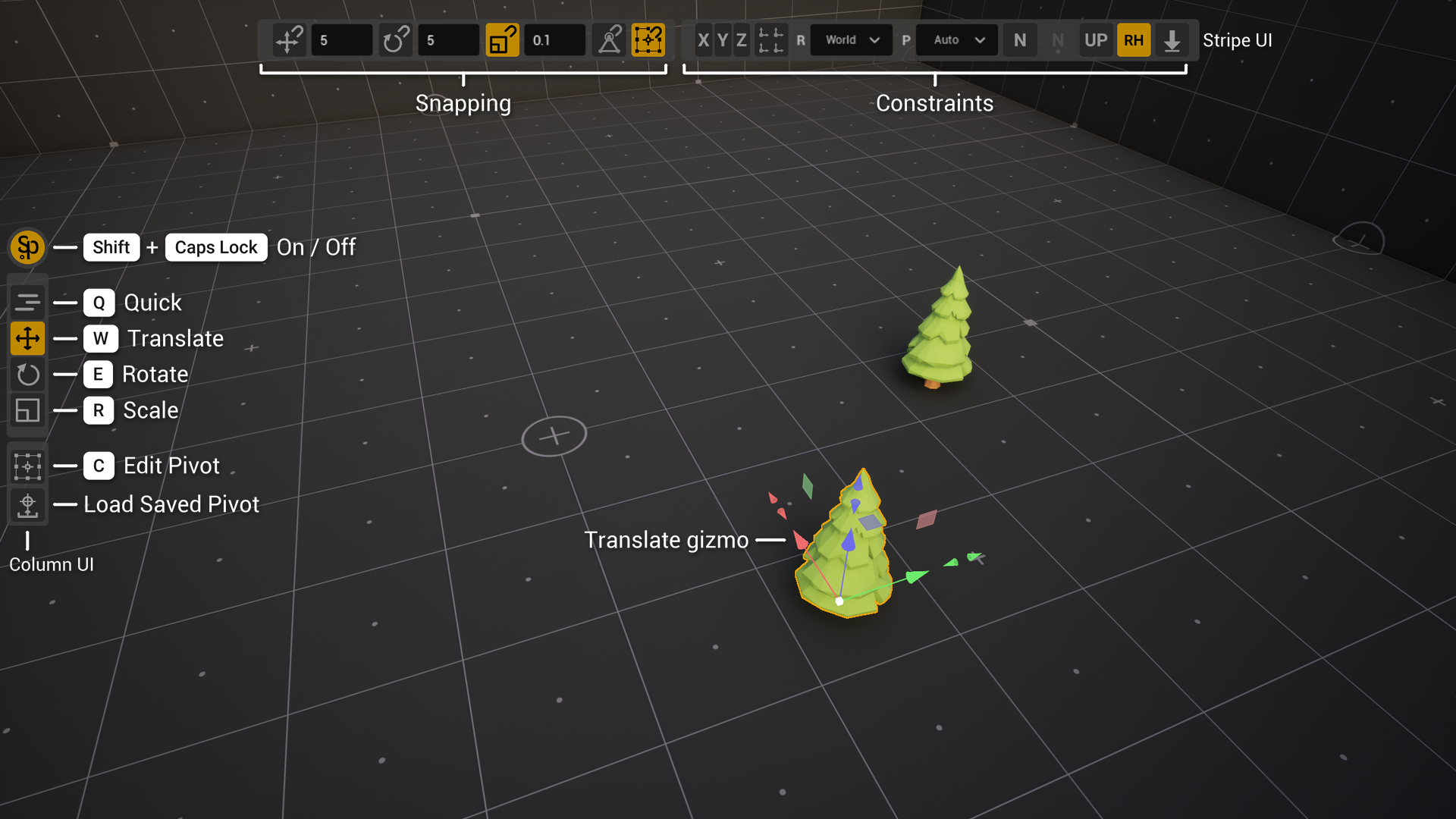
The buttons are described in detail in Interface Overview.
While SuperPlacer is awake, the engine's standard gizmos are hidden, and the Q, W, E, R keys switch the SuperPlacer gizmos. If you need the standard gizmo, put the tool to sleep — see below.
Move your first actor
When the editor starts, Quick mode is on: the selection follows the mouse, with no handles to grab. It is an extra way to transform objects in the level, and it saves you a lot of time when you place objects by hand. The other transform tools — Translate, Rotate and Scale — work much like the stock ones, but they have extra features that also save time and give you more precision.
- Click an actor in the viewport — selection works as usual.
- Press W. The Translate gizmo appears.
- Drag an axis arrow. The actor moves along it.
- Press E to rotate or R to scale, and drag a ring or a cube.
To get an exact value, type a number right after the gesture — the Touch&Type window opens. To go back to Quick mode, press Q. How to work in it is described in Quick Mode.
SuperPlacer hotkeys work only while the keyboard focus is in the level viewport — just like the standard Unreal Engine keys. If a key does nothing, click in the viewport first.
Undo and redo
Ctrl+Z undoes and Ctrl+Y redoes — as everywhere in the editor. SuperPlacer actions go into the editor's common undo history:
- one gesture — a gizmo drag, a Quick gesture, a teleport with a cone — is one step;
- everything you type in one Touch&Type window is one step;
- moving the pivot makes steps too: a click on an anchor, the eyedropper, moving and turning the pivot in Edit Pivot, a new value in the P dropdown, the Load Saved Pivot button. Ctrl+Z puts the pivot back where it was.
You can cancel a gesture before it ends with the right mouse button: keep the left button held, click the right one, and everything goes back to how it was before the gesture. Such a gesture leaves nothing in the undo history.
Sleep: switching SuperPlacer off for a moment
SuperPlacer takes over engine hotkeys, so your usual workflow and custom hotkeys may be unavailable while SuperPlacer is at work. If something goes wrong, the first thing to do is put SuperPlacer to sleep at once with Shift+CapsLock or the sleep button on the toolbar (or right in the viewport). Your custom hotkeys, the engine hotkeys and the standard controls are back immediately. This is not switching off — it is an instant sleep and wake, literally one key away.
You can put SuperPlacer to sleep and wake it up in three ways:
- press Shift+CapsLock;
- click the sleep button on the editor's main toolbar — its tooltip shows whether SuperPlacer is asleep;
- click the SuperPlacer On/Off button — the top one in the Column UI on the left of the viewport.
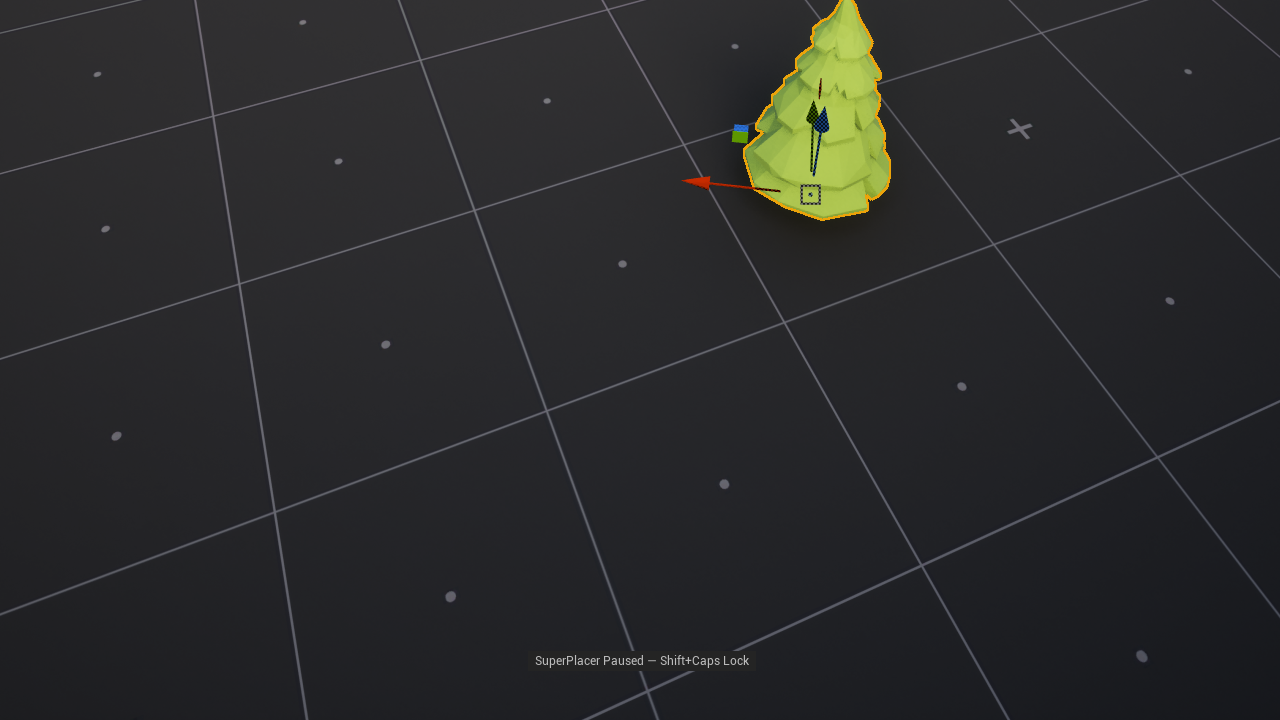
While asleep, SuperPlacer passes all input to the editor: the standard gizmos and engine keys work, and the Stripe UI and Column UI disappear. A SuperPlacer Paused banner with the shortcut hint appears at the bottom of the viewport for three seconds, then fades out. While the banner is visible, clicking it wakes SuperPlacer up.
The CapsLock key in this shortcut also works in the system as usual. If text in fields comes out in capitals after SuperPlacer wakes up, just press CapsLock once more.
You can change the sleep shortcut — see Hotkeys.