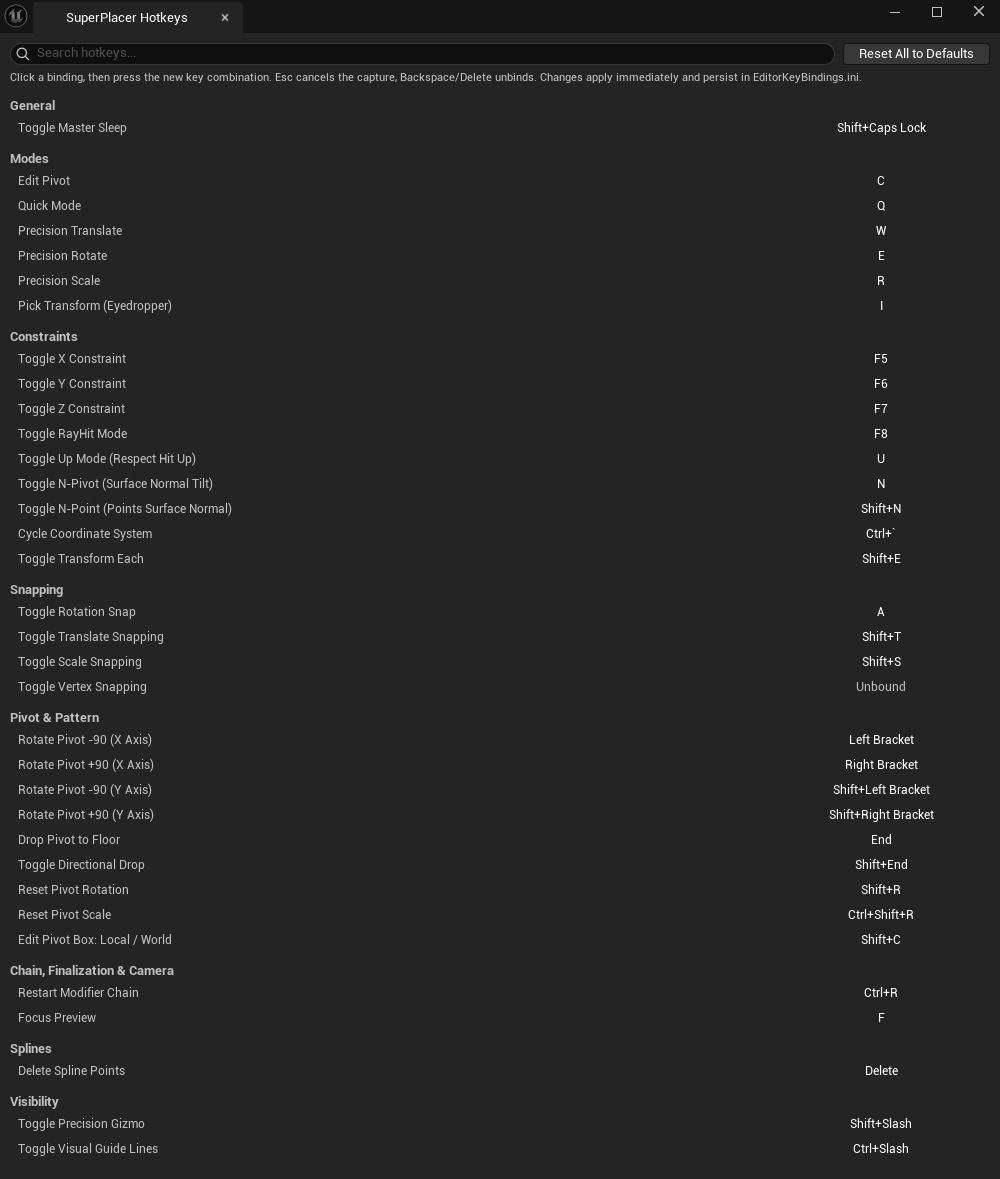
The default SuperPlacer shortcuts, what they do and where to change them.
All SuperPlacer commands and their shortcuts are in the SuperPlacer Hotkeys window. Open it from the main menu:
SuperPlacer → Hotkeys. The tables below follow the window's sections and show the default shortcuts.
Note
SuperPlacer shortcuts work while SuperPlacer is awake and the keyboard focus is in the level viewport. Shift+CapsLock
always works.
General
Keys
Command
What it does
Shift+CapsLock
Toggle Master Sleep
Put SuperPlacer to sleep or wake it up — see Sleep.
Translate — an endless drag, a Rotate ring — 45° steps, a Scale square — each axis on its own, a teleport cone and a Scale to Target cube — aiming. See Gizmo Basics.
Mouse wheel in a Quick gesture
Turn the selection around Z; with Shift — around X, with Ctrl — around Y, with Ctrl+Shift — scale it. See Quick Mode.
In Distribute — keep the layout; while stamping — leave a copy where the selection is.
Esc
Leave the open mode, for example Edit Pivot.
Changing a shortcut
Find the command in the SuperPlacer Hotkeys window. The Search hotkeys... field at the top filters the list.
Click the command's shortcut — Press a key... appears.
Press the new shortcut.
The change takes effect at once and is saved to the editor's standard shortcut file EditorKeyBindings.ini.
Esc while typing cancels it, Backspace or Delete clears the shortcut: the command is left without a key
(Unbound).
If the shortcut is already taken by another SuperPlacer command, it is taken off that command, and the editor shows a
notification.
The ↺ button in a row brings back that command's default shortcut, Reset All to Defaults — all of them.
Button tooltips in the viewport always show the current shortcuts.
Warning
The SuperPlacer Hotkeys window checks conflicts only between SuperPlacer commands. The same commands are in Edit → Editor
Preferences → Keyboard Shortcuts, category SuperPlacer: there you can see whether the editor itself or another plugin
already uses the shortcut.