The pivot sticks to mesh vertices and to their bounds anchors — while you drag the gizmo, in Quick mode, in Edit Pivot and with the gizmo's aims.
Grid snapping lines objects up by a step; this snapping lines them up by the objects themselves: corner to corner, face to face, exactly onto a neighbour's vertex. There are two kinds of targets, and you can turn them on separately or together:
- mesh vertices — cyan dots;
- bounds anchors — 26 points of the object's bounding box (corners, edge midpoints, face centers, without the center of the box) — orange dots.
Snapping to the grid, the angle and the scale step is described on the Snapping page.
Why snap to bounds
Vertex snapping is exact when the target has the vertex you need. Bounds snapping is for a target that is a rectangular block by its idea but has a complicated mesh: dense, with micro details, chamfers or a shaped profile. The most frequent case is a steel beam such as an I-beam. Its bounds are a plain bar, while the profile has dozens of edges and fillets; among hundreds of vertices you still have to catch the right one, and at an empty corner of the bounds there is no vertex at all. The bounds anchors sit exactly at the corners, edge midpoints and face centers of that bar. So a beam meets a beam corner to corner, even where the profile is hollow.
If the target has the very point you need — the corner of a step, the end of a pipe — vertex snapping is handier: a bounds anchor hangs at the corner of the bounding box, not on the surface.
Turning it on
The Snapping cluster of the Stripe UI has two buttons:
- Vertex Snapping — snap to vertices;
- Bounds Snapping — snap to bounds anchors.
Both are off by default. The buttons keep their state between editor sessions.
With both on, the closer point wins: right at a corner of the mesh — the vertex, at an empty corner of the bounds — the anchor.
The Toggle Vertex Snapping command has no default shortcut: assign your own in the main menu SuperPlacer → Hotkeys, in the Snapping section. Bounds snapping has no command of its own — only the button.
Where snapping works
Snapping moves the pivot, and the selection follows it:
- dragging the Translate gizmo — by an axis, a plane or the center;
- Quick mode — the pivot that follows the cursor sticks, on the click too;
- Edit Pivot — dragging the pivot with the gizmo and moving the pivot in Quick;
- the gizmo's aims (Advanced mode): Look At looks exactly at the vertex; Scale to Target and the teleport cones snap when you drag them with Shift.
A plain click on a Scale to Target cube or a teleport cone works as before, without snapping.
How the pivot lands on a vertex
- Dragging by the gizmo center, and Quick without constraints — the pivot lands exactly on the vertex.
- Dragging by an axis — the pivot lands in the vertex's plane: along that axis its coordinate matches the vertex, along the others it doesn't change.
- Dragging by a plane — the pivot lands on the vertex's projection onto that plane.
When you drag the gizmo, the snap radius is measured on screen from the pivot, not from the cursor. In Quick and with the aims — from the cursor.
The pivot doesn't let go at once: the current vertex holds a little beyond the radius (by a third). This way the pivot doesn't jitter between neighbouring vertices.
Snap radius and dots
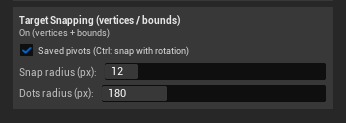
Right-click the Snapping cluster to open its settings. You need the Target Snapping (vertices / bounds) section:
| Setting | What it does | Default |
|---|---|---|
| Saved pivots (Ctrl: snap with rotation) | The saved pivot of the object under the cursor is a snap point too (a green dot with three short axes); with Ctrl only saved pivots snap, rotation included — see Saved pivots as sockets. Works only with bounds snapping on | on |
| Snap radius (px) | How close on screen the pivot has to come to a point to stick to it, 2–64 pixels | 12 |
| Dots radius (px) | The radius within which vertex dots are shown, 0–600 pixels; 0 — no dots | 180 |
The status line above the settings shows what is on: Off, On (vertices), On (bounds) or On (vertices + bounds). The addition inactive in the current context means that snapping is on but doesn't work in the current mode.
The dots show only during a gesture that can snap. At rest the viewport stays clean.
- Cyan dots — the vertices of the object under the cursor within the dots radius. They fade towards the edge of the radius. Vertices on the far side of the object, hidden by the object itself, are neither shown nor caught.
- Orange dots and a thin light grey box — the bounds anchors of the object under the cursor. All 26 anchors are shown, and geometry doesn't hide them: they are points of the bounding box, not of the surface. The box appears when the cursor gets onto the object itself and stays while the cursor remains within the box on screen (with a small margin) — so you can take the cursor off the object to an empty corner of the box and snap to the anchor there. The box of another object appears at once, and the previous one fades out when the cursor leaves it. When you drag the gizmo, the pivot plays the cursor's part.
- A bright marker with a white outline — the point the pivot is stuck to right now. It shows even with the dots radius at 0.
Snapping in Edit Pivot
In Edit Pivot only the pivot moves, so the selected object becomes a target too: the pivot sticks to its vertices as well. This is how you put the pivot exactly on a vertex of your own object.
Hence the vertex-to-vertex technique:
- Turn on Vertex Snapping.
- Press C and drag the pivot to the vertex you need on the selected object — with the gizmo or in Quick mode.
- Press C to leave Edit Pivot.
- Drag the object by the gizmo center to the neighbour's vertex. The vertex of your object lands exactly on the neighbour's vertex.
Outside Edit Pivot the object you move is never a target: snapping looks for points only on other objects.
Which objects are targets
- Targets are static meshes, Instanced Static Mesh instances and dynamic meshes. Snapping takes vertices from one object — the one under the pivot on screen (when you drag the gizmo) or under the cursor. Bounds anchors come from the objects whose box is shown right now.
- For an instance, the targets are the vertices and anchors of that very instance, not of the whole component.
- Bounds anchors sit on the object's own box, along its axes, even if the object is rotated.
- Bounds anchors work where vertices aren't available too, for example on a very dense mesh.
- Not targets: landscape, skeletal meshes, BSP, spline meshes. Hidden objects aren't targets either.
Bypassing a snap
Hold Ctrl during a gesture — snapping to vertices and anchors turns off for a moment, and the dots go out. Release Ctrl — snapping is back.
With Bounds Snapping and the Saved pivots checkbox on, Ctrl switches to socket mode instead: only saved pivots snap (see Saved pivots as sockets). Snapping is then turned off with Ctrl+Shift.
In Modeling Mode
Snapping works in the Modeling Mode tools too. When you move selected vertices, edges or faces of a mesh in PolyGroup Edit or Triangle Edit, they stick to the other vertices of the same mesh. The vertices that are being moved are never targets.
Advanced techniques
Snapping is at its strongest together with Edit Pivot: first put the pivot on the point the object should join by, then drag the object — and it sticks to its neighbour with exactly that point.
Vertex to vertex
The pivot goes onto a vertex at the end of a pipe — in Edit Pivot, with Quick mode and vertex snapping. After leaving Edit Pivot the pipe sets that vertex exactly onto a vertex at the end of the other pipe. Step by step — in Snapping in Edit Pivot.
A frame by the bounds
Structural steel profiles are exactly the case where bounds snapping beats vertices. The pivot of a channel goes from its center to a corner, and then every copy snaps by that corner to the bounds anchors of the ones already standing. More in Snapping by a prepared pivot.
Saved pivots as sockets
A pivot saved on an actor is one more snap point while bounds snapping is on. With Ctrl the object takes its rotation too: two parts with saved pivots join like a plug and a socket. More in Saved pivots as sockets.